NetMirror App Not Working? Here’s How to Fix It
Even the most reliable apps run into occasional issues, and NetMirror App is no different. Whether it’s a loading problem or a playback error, most issues have a simple fix. This troubleshooting guide from NETMIRRORAPPZ.COM covers the most common problems and their solutions.
Why Streaming Apps Stop Working
Streaming apps depend on several factors to run smoothly, including internet speed, device performance, and app version. When any of these factors are off, users may notice slow loading, crashes, or playback errors. Identifying the root cause is the first step toward a quick fix.
Most issues with NetMirror App are minor and can be resolved without technical help. A few simple checks usually solve the majority of problems users report. Patience and a step-by-step approach make troubleshooting much easier.
Common Issues and Quick Fixes
Below is a list of frequent problems users face, along with straightforward solutions.
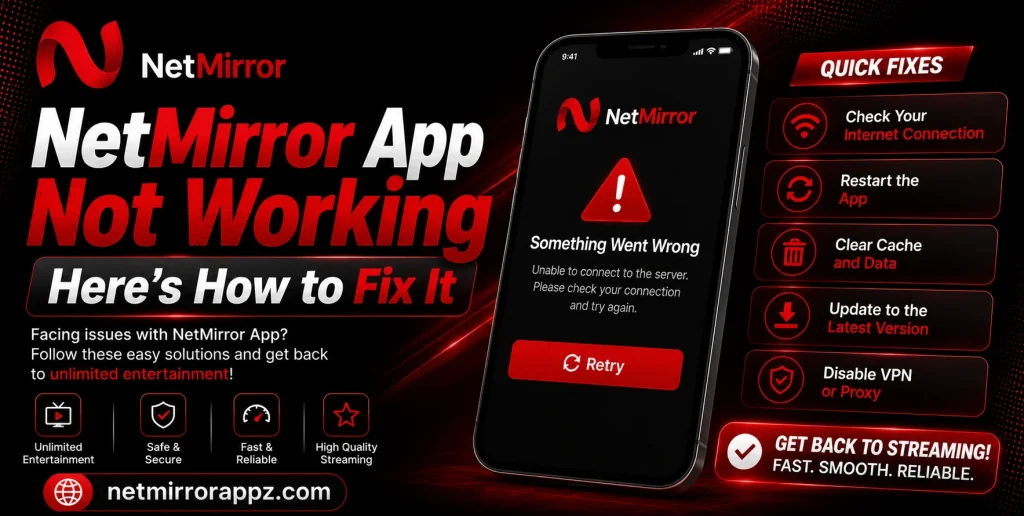
- App won’t open: Restart your device and try launching the app again
- Content not loading: Check your internet connection or switch to a stronger network
- Video buffering constantly: Lower the video quality setting for smoother playback
- App crashes randomly: Clear the app cache through your device settings
- Outdated version errors: Download the latest update from NETMIRRORAPPZ.COM
Working through this list often resolves the issue within a few minutes. If one fix does not work, moving to the next option usually helps.
Fixing Slow Loading and Buffering
Slow loading is one of the most common complaints among streaming app users. This issue is often linked to weak internet signals rather than the app itself. Switching from mobile data to Wi-Fi, or moving closer to the router, can noticeably improve loading speed.
Lowering the video quality setting also reduces the amount of data needed for smooth playback. Closing other background apps that consume bandwidth can free up resources for streaming. These small adjustments often make a big difference in overall performance.
Clearing Cache and Storage Issues
Over time, cached data can build up and slow down app performance. Clearing this cache is a simple process that can restore normal speed. On most Android devices, this can be done through Settings, then Apps, then selecting NetMirror App, and choosing Clear Cache.
Low storage space on the device can also cause apps to behave unexpectedly. Removing unused files or apps frees up space and improves overall performance. A device with adequate free storage generally runs streaming apps more smoothly.
When to Reinstall the App
Sometimes the best fix is a fresh installation, especially if the app has become corrupted or outdated. The table below outlines when reinstalling is the recommended solution.
| Situation | Recommended Action |
|---|---|
| App repeatedly crashes | Uninstall and reinstall |
| Update fails to install | Remove old version first |
| Persistent error messages | Fresh installation from NETMIRRORAPPZ.COM |
| App missing after phone reset | Reinstall using the latest APK |
Reinstalling the app ensures that any corrupted files are replaced with a clean version. This step often resolves issues that simple troubleshooting cannot fix.
Preventing Future Issues
A few simple habits can reduce the chances of running into problems again. Keeping the app updated to its latest version ensures access to bug fixes and performance improvements. Regularly clearing cache and maintaining sufficient storage space also helps keep the app running smoothly.
Using a stable internet connection, especially during peak hours, reduces buffering and loading delays. Avoiding modified or unofficial versions of the app lowers the risk of unexpected errors. Sticking to trusted sources like NETMIRRORAPPZ.COM for updates remains the safest long-term habit.
Diagnosing Playback-Specific Problems
Not every issue affects the whole app; sometimes only video playback misbehaves while the rest of the app works fine. This usually points to a problem with the specific content source rather than the app itself. Trying a different title can help confirm whether the issue is isolated to one piece of content or affects everything.
If only certain videos fail to load, waiting a short while and trying again often resolves the problem, since mirror sources occasionally experience temporary downtime. Switching to a lower quality setting can also help if a specific title struggles to buffer at higher resolutions. Isolating the problem this way saves time compared to troubleshooting the entire app unnecessarily.
Network-Related Troubleshooting Steps
Since streaming relies heavily on a stable connection, network issues are among the most common causes of app problems. The list below outlines a structured approach to ruling out network-related causes:
- Restart your router to refresh the connection
- Switch between Wi-Fi and mobile data to identify which performs better
- Move closer to the router if using a wireless connection
- Disconnect unused devices from the network to free up bandwidth
- Run a speed test to confirm your connection meets minimum requirements
Working through this checklist helps rule out the network as the source of the problem before looking deeper into app-specific settings. Many playback issues resolve immediately once the connection is stabilized.
App Permission and Settings Check
Sometimes playback or loading issues stem from incorrect app permissions rather than a bug in the app itself. Checking that storage and network permissions remain enabled in device settings can resolve unexpected errors. This is especially relevant after a phone software update, which can occasionally reset app permissions.
Reviewing in-app settings, such as default video quality or cache limits, can also help identify unusual behavior. Resetting these settings to default sometimes clears up persistent glitches. A quick settings review takes only a minute but can save a lot of frustration.
When to Seek Additional Help
While most issues resolve with the steps outlined above, some problems may require checking for broader updates or announcements. Visiting NETMIRRORAPPZ.COM for the latest news can clarify whether an issue is isolated to one device or part of a wider, temporary outage. Official update logs often mention known issues and their expected fix timelines.
If a problem persists after trying every suggested fix, reinstalling the app fresh remains the most reliable final step. Keeping the device’s operating system updated also reduces compatibility-related errors over time. Combining these habits ensures long-term stability with minimal disruption.
Frequently Asked Troubleshooting Questions
Users often have a few recurring questions when the app misbehaves.
Does Clearing Cache Delete Saved Preferences?
Clearing cache typically only removes temporary files, not core settings, though some minor preferences may reset. Most users notice no real difference beyond a small speed improvement.
Is It Normal for the App to Briefly Freeze When Switching Titles?
A short pause while loading new content is normal, especially on slower connections, and does not usually indicate a deeper problem. It typically resolves within a few seconds once the new title loads.
Should the App Be Force-Closed Regularly?
Force-closing is only necessary when troubleshooting a specific issue, not as a routine habit, since it does not improve everyday performance. Doing it too often can actually slow down how quickly the app reopens.
Preventing Repeat Problems Through Simple Maintenance
Beyond immediate fixes, a small amount of regular maintenance goes a long way in preventing repeat issues. Restarting the device every few days helps clear temporary system glitches that can affect any installed app, including NetMirror App. Keeping the phone’s operating system updated alongside the app itself further reduces the chances of compatibility-related errors.
Periodically reviewing storage space, even when no problems are present, helps catch potential issues before they affect performance. Treating troubleshooting as an occasional maintenance habit, rather than only a reactive fix, leads to a noticeably smoother experience over time. Combining these habits with regular checks on NETMIRRORAPPZ.COM keeps both the app and the overall viewing experience running reliably.
Keeping a Simple Troubleshooting Log
For users who experience recurring issues, keeping a brief mental or written log of what triggered a problem can be surprisingly useful. Noting details like the time of day, network type, or specific title being played helps identify patterns that might not be obvious right away. This information becomes especially helpful if the same issue needs to be described later while searching for a fix.
Patterns like frequent buffering only during peak evening hours often point toward network congestion rather than an app problem. Recognizing these patterns early saves time by directing troubleshooting efforts toward the actual root cause. A simple log, even if only kept in memory, adds a layer of clarity to the entire troubleshooting process.
Staying Calm Through Technical Hiccups
Technical hiccups can feel frustrating in the moment, especially when they interrupt a planned viewing session, but most are resolved quickly with a calm, methodical approach. Working through fixes in order, starting with the simplest option like a restart, saves time compared to jumping between random solutions. This structured mindset applies to nearly any app, not just NetMirror App, and builds confidence for handling future issues independently.
Keeping a mental note of which fixes worked in the past also speeds up the process if a similar issue reappears later. Over time, most users develop a quick personal troubleshooting routine that resolves common problems within minutes. For anything beyond these routine fixes, NETMIRRORAPPZ.COM remains available as a helpful reference point.
Final Thoughts
Most problems with NetMirror App come down to simple, fixable causes like weak internet or outdated versions. Following the steps in this guide should resolve the majority of issues without much hassle. For the latest app version and additional support, NETMIRRORAPPZ.COM is the best place to turn.