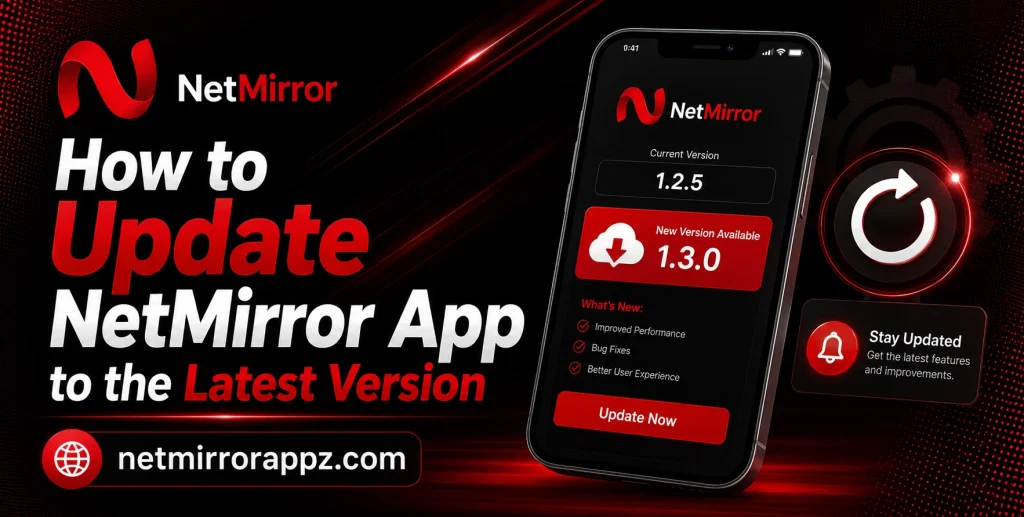
How to Update NetMirror App to the Latest Version
Keeping any app updated is important for smooth performance, and NetMirror App is no exception. Updates often bring bug fixes, new features, and better security. This guide from NETMIRRORAPPZ.COM explains how to update the app correctly and why it matters.
Why Updating the App Matters
Regular updates ensure that the app continues to run smoothly across different devices and operating systems. They also patch small bugs that may cause crashes or slow performance over time. Without updates, users risk missing out on new features and improved streaming quality.
Security is another important reason to stay updated, since older versions may have unresolved vulnerabilities. Developers release updates specifically to close these gaps and improve overall safety. Staying current with the latest version keeps the app running at its best.
Signs That an Update Is Needed
Certain signs can indicate that it’s time to update NetMirror App. Watch for the following:
- Frequent crashes or unexpected app closures
- Missing new content that other users can already access
- Slow loading times compared to before
- Error messages mentioning outdated versions
- Playback issues that were not present earlier
If any of these signs appear, checking for an update is usually the quickest fix. Most performance issues improve significantly after installing the latest version.
Steps to Update NetMirror App
Updating the app follows a simple process similar to the original installation. Follow these steps:
- Visit NETMIRRORAPPZ.COM to check for the latest available version
- Download the updated APK file directly from the official page
- Open the downloaded file once it finishes downloading
- Select Install to replace the older version automatically
- Open the app to confirm the update was successful
This process usually takes just a few minutes and does not require removing the old version first in most cases. The installer automatically replaces outdated files with the new ones.
Checking the Current App Version
Before updating, it can help to check which version is currently installed. This information is usually available within the app’s settings or about section. Comparing this with the latest version listed on NETMIRRORAPPZ.COM confirms whether an update is actually needed.
Knowing the current version also helps when troubleshooting specific issues, since some problems are tied to particular releases. Keeping track of version numbers makes future updates easier to manage. This small habit saves time during future troubleshooting.
Update Frequency Overview
Here is a general overview of how often updates are typically released and what they usually include.
| Update Type | Typical Frequency | Common Changes |
|---|---|---|
| Minor Update | Every few weeks | Bug fixes, small improvements |
| Major Update | Every few months | New features, interface changes |
| Security Patch | As needed | Vulnerability fixes |
Staying aware of this pattern helps users know when to expect new updates. Checking the official site periodically ensures no update goes unnoticed.
Troubleshooting Update Issues
Occasionally, users may run into small issues while updating the app. If an update fails to install, try clearing storage space or restarting the device before trying again. Uninstalling the old version completely before installing the new one can also resolve stubborn installation errors.
Ensuring a stable internet connection during the download process prevents incomplete or corrupted files. If issues persist, redownloading the file fresh from NETMIRRORAPPZ.COM usually solves the problem. Most update-related issues are minor and resolve quickly with these simple steps.
Updating on Android vs iOS
The update process differs slightly depending on the device type, since each operating system handles third-party apps differently. On Android, updating typically involves downloading a new APK file and installing it directly over the existing version. On iOS, updates usually require revisiting the official access link and following the same trust verification steps used during the original setup.
Despite these differences, both platforms rely on the same core source for the latest files, which is NETMIRRORAPPZ.COM. Keeping this consistency in mind helps users feel confident regardless of which device they use. Following platform-specific instructions carefully ensures a smooth update every time.
What Happens to Your Data During an Update
A common concern among users is whether updating the app will erase saved preferences or viewing history. In most cases, updating NetMirror App preserves local settings such as video quality preferences and cached data. Since the app does not rely on account-based cloud storage, all data remains tied to the device itself rather than an online profile.
However, a full uninstall and reinstall, rather than a direct update, may clear some cached information and reset default settings. Users who want to preserve specific preferences should choose the standard update method whenever possible. Understanding this distinction helps avoid unnecessary data loss during routine maintenance.
Setting Up Update Reminders
Since NetMirror App does not push automatic notifications through an app store, setting a personal reminder is a practical way to stay current. Many users choose to check for updates at the start of each month as part of a simple routine. This habit takes only a minute but ensures the app rarely falls too far behind the latest release.
Following official social channels or bookmarking the update page on NETMIRRORAPPZ.COM can also help users stay informed without actively searching each time. Combining a personal reminder with occasional site visits creates a reliable update routine. Consistency here pays off through fewer bugs and smoother long-term performance.
Benefits of Staying on the Latest Version
Beyond fixing bugs, staying updated often means access to a smoother interface, faster load times, and better compatibility with newer devices. Developers frequently optimize the app’s performance with each release based on user feedback. This means updated versions often feel noticeably faster than older ones, even without dramatic visual changes.
Security improvements included in updates also protect users from potential vulnerabilities found in earlier versions. Combined with new features and expanded content support, staying current keeps the overall experience fresh. This makes the small effort of checking for updates well worth it over time.
Frequently Asked Update Questions
Users often ask a few common questions before updating the app.
Is It Necessary to Uninstall the Old Version Before Every Update?
In most cases, installing over the existing version works fine, though a fresh install can help if repeated issues occur. Uninstalling first is only needed when troubleshooting a stubborn problem.
Will Updating Change the App’s Interface Significantly?
Most updates introduce gradual improvements rather than a completely different layout, so the learning curve remains minimal. Users can generally navigate the app the same way after every update.
Does Skipping Several Updates Cause Problems?
Skipping multiple updates can occasionally lead to compatibility issues, making it best to update at least once every few weeks. Falling too far behind increases the chance of running into avoidable errors.
Building a Simple Maintenance Routine
Treating updates as part of a broader maintenance routine, rather than an occasional afterthought, leads to a more consistently smooth experience. Pairing update checks with other simple habits, such as clearing cache and reviewing storage space, creates a well-rounded approach to app care. This routine takes only a few minutes each month but noticeably reduces the frequency of unexpected issues.
Users who treat this as a light monthly habit, similar to checking for updates on any other favorite app, rarely encounter major problems. Consistency remains the key factor in keeping performance steady over time. For the latest release details to include in this routine, NETMIRRORAPPZ.COM remains the most dependable reference point.
Understanding Version Numbers
Version numbers can look confusing at first, but they follow a simple logic that helps users track how current their app is. A larger jump in the number, such as moving from one whole version to the next, usually signals a major update with noticeable changes. A smaller change, often seen after a decimal point, typically points to a minor fix or small improvement.
Comparing the version number shown in the app’s settings against the one listed on NETMIRRORAPPZ.COM is the quickest way to confirm whether an update is available. This simple habit removes any guesswork from the update process. Once familiar with this pattern, checking for updates becomes a fast, almost automatic task.
A Final Word on Staying Current
Staying current with updates is one of the simplest ways to keep any app running at its best, and NetMirror App is no different in that regard. The process requires very little effort once it becomes a regular habit, especially when paired with a bookmark to NETMIRRORAPPZ.COM. Users who prioritize this small routine consistently report smoother performance and fewer unexpected issues over time.
Treating updates as a quick, recurring task rather than an occasional emergency fix leads to a noticeably better long-term experience. This mindset shift, from reactive to proactive maintenance, is a small change that makes a real difference. A few minutes spent checking for updates regularly is a worthwhile investment in overall app performance.
Final Thoughts
Regularly updating NetMirror App ensures better performance, added features, and improved security over time. The update process remains simple and quick, much like the original installation. For the latest version and update notifications, NETMIRRORAPPZ.COM is the most reliable source to check.