How to Download NetMirror App for Android in 2026
Android users who want free access to movies and shows often search for a simple, safe way to get NetMirror App on their phones. The good news is that the download process is short and does not need any technical background. This guide from NETMIRRORAPPZ.COM walks you through every step so you can start streaming within minutes.
Why Download NetMirror App on Android?
Android remains the most widely used mobile operating system, and NetMirror App is built to run smoothly on almost every Android device. The app is light on storage and does not slow down phones with limited RAM. This makes it a strong option for users who want quality streaming without buying a new device.
Many users prefer this app because it skips the long registration process found on other platforms. There is no need to enter payment details or personal information just to watch a movie. This simple approach saves time and keeps the whole experience stress-free.
Steps to Download NetMirror App
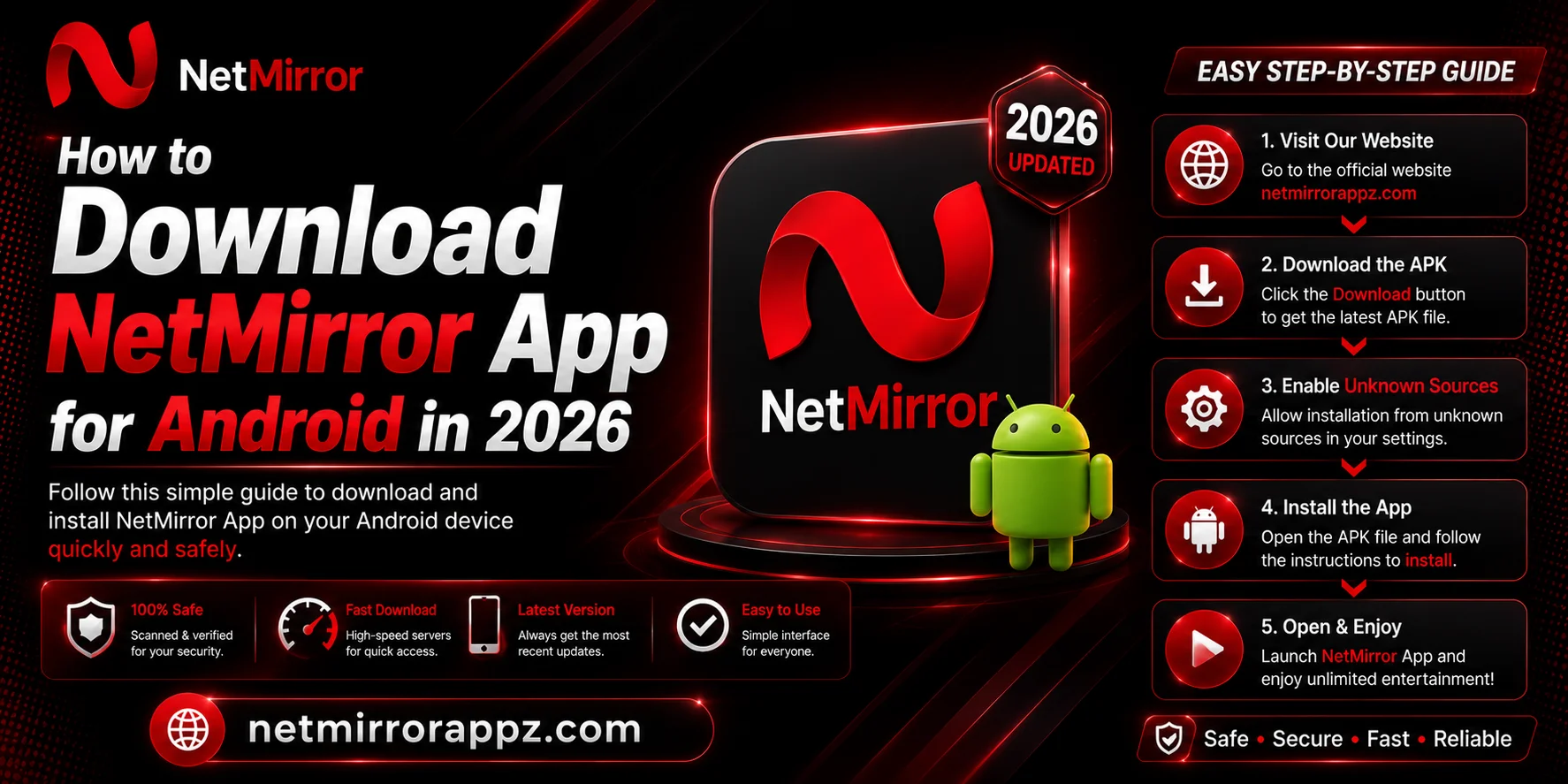
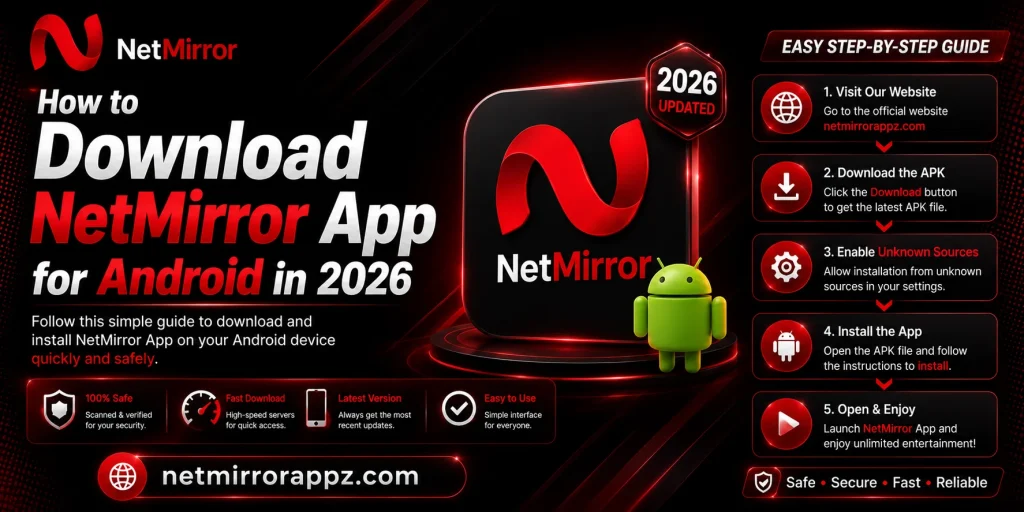
The download process for NetMirror App follows a few easy steps. Below is a simple breakdown:
- Visit NETMIRRORAPPZ.COM on your Android browser
- Locate the official download button for the latest APK file
- Tap the button and wait for the file to save on your device
- Open the file manager and locate the downloaded APK
- Tap the file to begin the installation process
Once these steps are complete, the app icon will appear on the home screen, ready to open. The whole process usually takes less than five minutes on a stable internet connection.
How to Enable Installation from Unknown Sources
Since NetMirror App is not available on the official Play Store, Android phones require a small settings change before installation. Users need to open Settings, then go to Security or Privacy, and turn on the option for Unknown Sources or Install Unknown Apps. This step allows the phone to accept APK files from outside the Play Store.
This setting is a standard requirement for any app that comes from a source other than the official store. It does not harm the phone in any way when the file itself is downloaded from a trusted site. Once the app is installed, users can turn this setting back off if they prefer extra caution.
System Requirements for Smooth Performance
Before downloading NetMirror App, it helps to check whether your device meets the basic requirements. Here is a quick table for reference.
| Requirement | Minimum Specification |
|---|---|
| Android Version | 5.0 or higher |
| Storage Space | At least 50 MB free |
| RAM | 1 GB or more |
| Internet Connection | Stable Wi-Fi or mobile data |
Devices that meet these requirements should run the app without lag or crashing issues. Older phones may still work, though playback speed can depend on the internet connection quality.
Tips for a Safe Download
Safety should always come first when downloading any APK file from outside the Play Store. Users should only trust official links, such as those found on NETMIRRORAPPZ.COM, rather than random third-party sites. A verified source reduces the risk of fake files or hidden malware.
It also helps to keep a mobile antivirus tool active during the installation process. This adds an extra layer of protection without interrupting the download. Following these small precautions makes the entire process smooth and worry-free.
Common Download Issues and Fixes
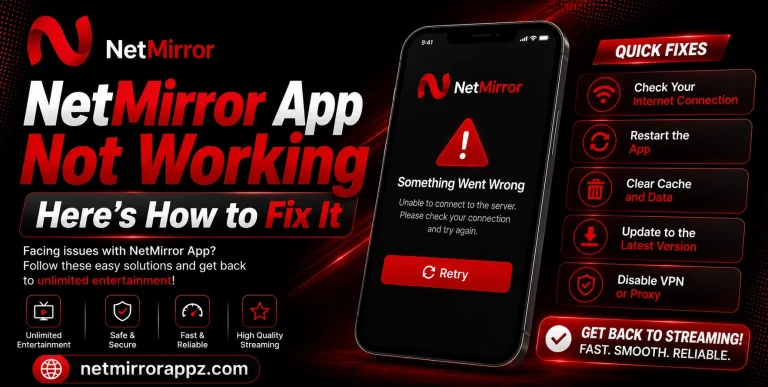
Sometimes users run into small problems while downloading or installing the app. Here are a few common issues and their fixes:
- File not downloading: Check your internet connection and try again
- Installation blocked: Confirm that unknown sources are enabled in settings
- App not opening: Restart the phone and launch the app again
- Storage error: Clear unused files to free up space before installing
Most of these issues can be solved within a minute or two without needing outside help. If problems continue, checking for the latest version on NETMIRRORAPPZ.COM usually resolves the matter.
Step-by-Step Screenshot Walkthrough
For users who prefer a visual reference, the download page on NETMIRRORAPPZ.COM typically includes screenshots alongside each step. This helps confirm that each tap or setting change matches what is expected on the screen. A visual guide can be especially useful for first-time users who feel unsure about changing phone settings.
Following along with screenshots also reduces the chance of skipping a step by mistake. Users who compare their screen to the guide often complete the process faster and with fewer errors. This extra layer of guidance makes the download process even more beginner-friendly.
Comparing Download Sources
Not every website offering the NetMirror App file is equally trustworthy, so comparing sources matters. The table below outlines key differences between an official source and a random third-party site.
| Factor | Official Source | Unverified Third-Party Site |
|---|---|---|
| File Safety | Verified and scanned | Risk of tampering |
| Update Frequency | Regularly updated | Often outdated |
| Ads and Pop-ups | Minimal | Frequently excessive |
| Support Availability | Guides and troubleshooting available | Rarely available |
This comparison makes it clear why sticking to a verified source such as NETMIRRORAPPZ.COM is the safer choice. Saving a bookmark to the official page avoids confusion the next time an update is needed.
What to Do After Downloading
Once the app is successfully downloaded and installed, a few quick steps can improve the initial setup experience. Opening the app for the first time and browsing through the main categories helps users get familiar with the layout. Adjusting the default video quality setting based on internet speed can also prevent buffering during the first viewing session.
It also helps to check for any available update immediately after installation, since new versions sometimes roll out shortly after a release. Keeping notifications enabled, if the app supports them, can alert users to future updates automatically. These small steps set up a smoother long-term experience with the app.
Battery and Data Usage Considerations
Streaming apps naturally use more battery and data compared to standard applications, and NetMirror App is no exception. Lowering the video quality setting during mobile data use can help conserve both battery life and data allowance. Closing the app fully after use, rather than leaving it running in the background, also helps manage resource consumption.
Users on limited data plans should pay close attention to video quality settings, especially while streaming longer content. Wi-Fi remains the more efficient option for extended viewing sessions. Small adjustments like these make a noticeable difference over a full month of regular use.
Frequently Asked Questions About Downloading
Many first-time users share similar questions before downloading the app. Is a computer needed to download the file? No, the entire process can be completed directly from an Android phone or tablet without any additional device. Will downloading the app affect other apps on the phone? No, the installation only adds the new app without altering existing software or files.
Does the app need to be redownloaded after every phone restart? No, once installed, the app remains on the device just like any other application until manually removed. These simple clarifications help remove any hesitation before starting the download process.
Choosing the Right Time to Download
While NetMirror App can be downloaded at any time, choosing a moment with a stable Wi-Fi connection makes the process faster and more reliable. Downloading during off-peak hours, when network congestion is lower, can also reduce wait times in areas with shared internet infrastructure. Planning the download around a stable connection avoids interruptions that could lead to incomplete files.
Users who are frequently on the move may prefer downloading while connected to home or office Wi-Fi rather than relying on mobile data. This small planning step ensures a smoother first-time experience. Taking a few extra minutes to pick the right moment pays off with a faster, error-free installation.
A Quick Recap Before You Begin
Before starting the download, it helps to run through a short mental checklist to avoid interruptions midway. Confirm that the device has enough free storage, a stable internet connection, and that unknown sources are ready to be enabled if not already. Having the official link to NETMIRRORAPPZ.COM bookmarked in advance also saves a small amount of time during the process.
This kind of quick preparation turns the download into a smooth, uninterrupted task rather than a stop-and-start process. Most users who prepare these small details in advance complete the entire setup in well under ten minutes. A little planning goes a long way toward a hassle-free first experience with the app.
Final Thoughts
Downloading NetMirror App on Android is a quick and simple process when the right steps are followed. From enabling unknown sources to checking system requirements, each step plays a small role in a smooth setup. For the latest APK file and updates, NETMIRRORAPPZ.COM remains the safest place to start.